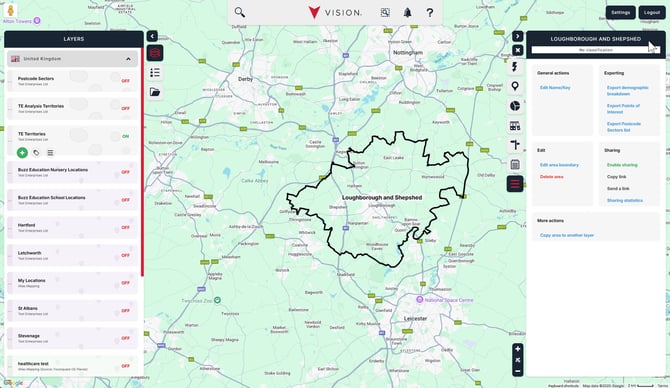
In this lesson, we will learn how to edit the details of an area or location. Here, we’ll refer to areas and locations collectively as records.
For all sections, start by ensuring that one of your layers is turned on and then navigate to the record you want to edit. We’ve chosen to focus on an area, but the process is identical for locations. Your screen should look like this.
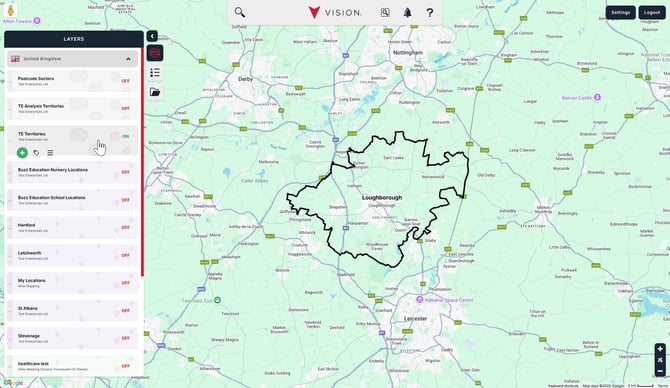
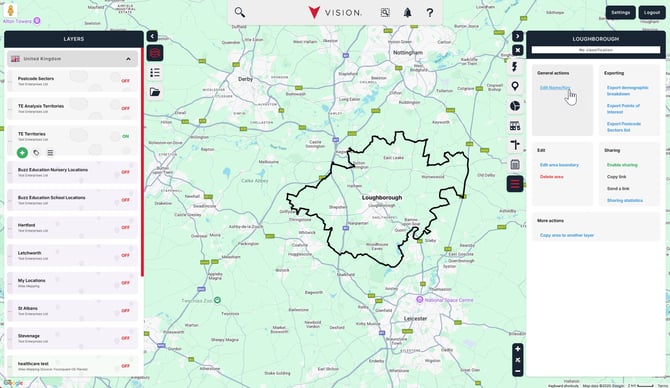
Click on the record to open the information window, and select the Actions tab, which is found at the bottom of the list of tabs. Then, click on Edit Name/Key in the General actions section.
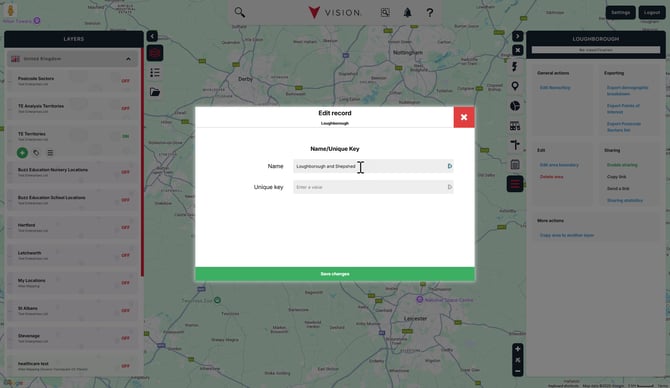
Change the name for your record (you can always undo this later by repeating the same steps).
When you're done, click Save changes.
Any changes you’ve made will be saved, and you’ll be returned to the information window. That's it! Editing data is as simple as that!