Prerequisites
- You will need to have created classifications and attached them to the record’s layer. See here for instructions on how to do this.
Required time: Up to 10 minutes.
In this lesson, we will learn how to edit the classification of an area or location.
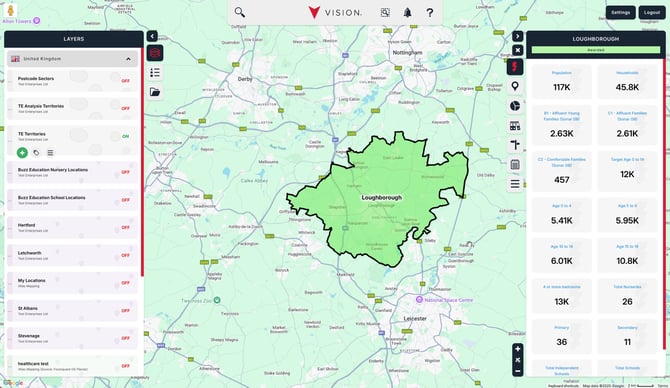
For all sections, start by ensuring that one of your layers is turned on and then navigate to the area or location you want to edit. We’ve chosen to focus on an area, but the process is identical for locations. Your screen should look like this.
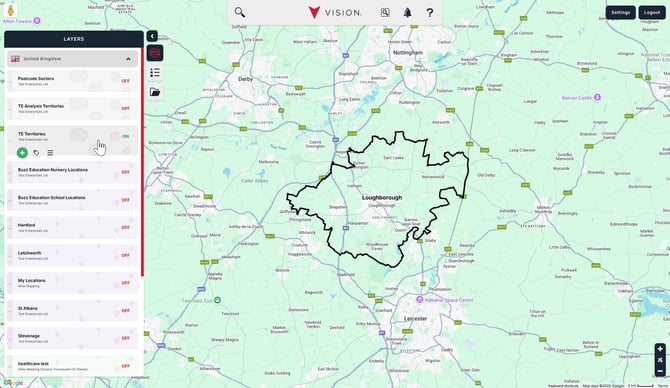
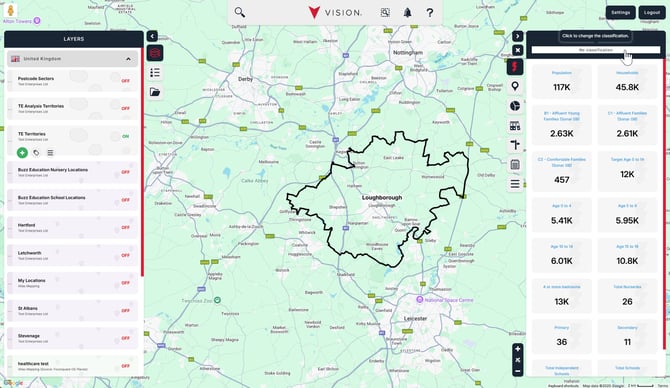
Click on the area or location to open the information window. Click on the classification section at the top of the information window.
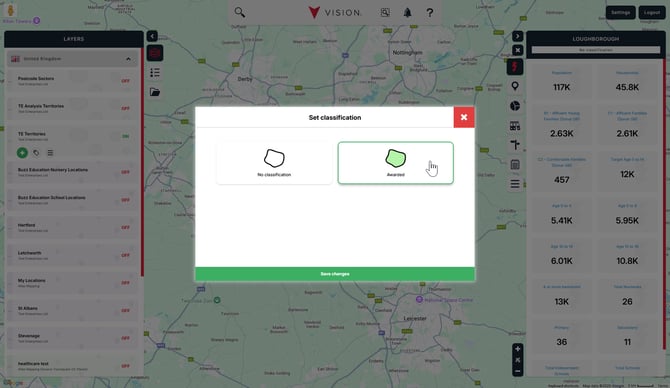
A dialogue box will appear in the centre of the screen with all available classifications. Select the appropriate classification and then Save changes.
The map will now reflect the new classification.