
What is Territory Checker?
We created Territory Checker to improve your franchise recruitment process. It saves you time performing territory checks and provides your prospective franchisees the best in class experience.
Territory Checker has two elements to it:
- Automated territory checking via the API, documentation here. With this option, you can link Vision to your website and/or systems to take a Postal/Zip Code and automatically check whether a territory is available within a specific radius of that Postal Code.
- Candidates draw their preferred search area on a map for you to view against your territories.
Let's cover how both work.
The Territory Checker API
Reach out to our team and we will support with the set up. We just need to know what radius you want the search to extend from the middle of the Postal/Zip Code e.g. 10miles.
When Territory Checker searches in this radius, it checks to see what territories are in that radius and what their Classification is e.g. Available, Sold, Resale. Depending on what rules you set for each Classification will return a "Yes" or "No" result from Territory Checker. Or in another words, "Yes" there's a territory available or "No" there isn't. You then decide what happens with the result.
Here's an example set up you could do:
- Set up rules so that if greater than 0% of the search radius is covered by an "Available" or "Resale" territory then return a result of "Yes".
- If greater than 90% of the search area territory is covered by a "Sold" territory then return a result of "No".
- Anything outside of that is a "Maybe".
- Link Territory Checker to your website and ask for a Postal/Zip Code with your franchise enquiry forms. Take the Postal/Zip Code from the form and send it to the Territory Checker API.
- If it returns "Yes" then send a confirmation email to the prospect and an internal message that a viable lead has come through.
- If it returns "No" or "Maybe" then send a holding email to the prospect and an internal message to your sales team to manually check things out.
- When you get more confident with the Territory Checker results then you might want to automatically send a "Sorry nothing available" email to prospects when you get a "No" result.
- From there, your sales team do their thing and save time by focussing on the highest priority prospects and spend less time with tediuos territory checking duties!
Candidates draw their preferred search area
This part of Vision has been designed so that you, or agents working on behalf of your business, can send a map link to a candidate and they draw their search area on that map. You are notified in Vision and can overlay that area on your map to view against your territories. It's also possible for agents to complete the search area and submit it to multiple brands that have set them up as an agent in their Vision system.
Setting up pots:
Pots are used to group territory checks together and decide which agents can make territory checks to specific pots. Most pots will be used to identify a brand, if you are a single brand franchisor then you will likely just have one pot.
Only Organisation Admins can set up pots. Head to your Organisation Admin area and you will see the Territory Checker option on the left once it's made available in your system. Click on the Pots button to manage your pots.
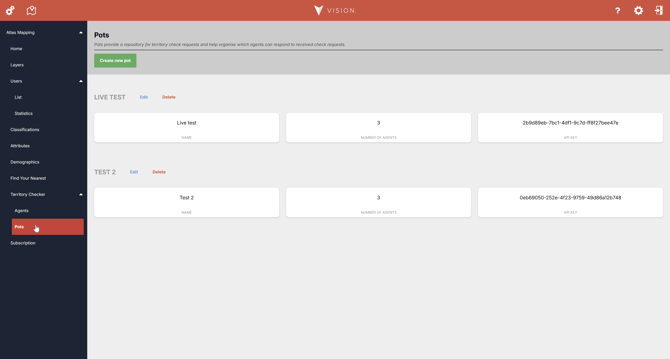
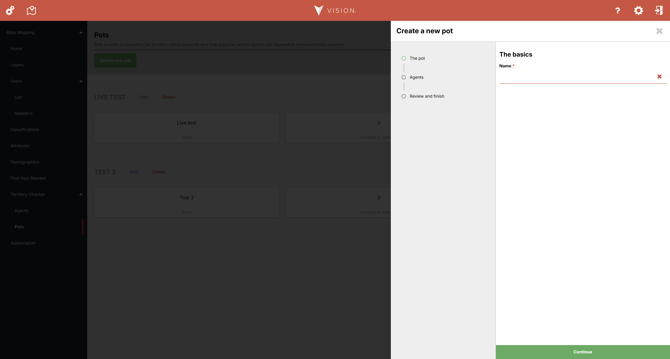
Click on the "Create new pot" button to create one. Once in the process, you just need to give it a name e.g. your brand name, and then select which agents can submit territory checks to it if you have any agents set up yet.
Setting up an agent:
Only Organisation Admins can set up agents. Head to your Organisation Admin area and you will see the Territory Checker option on the left once it's made available in your system. Click on the Agents button to manage agents.
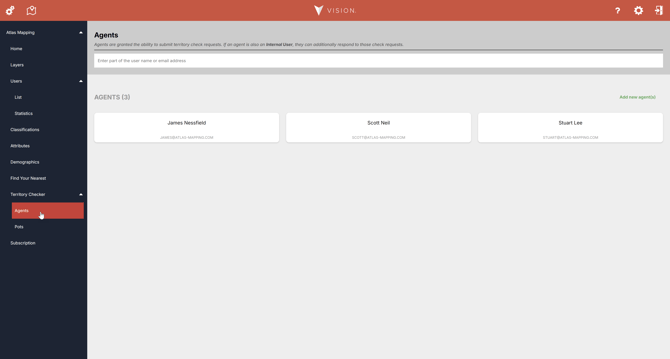
Here you will see all of the agents you've added (if any) and can add new ones by clicking the green "Add new agent(s)" button in the top right.
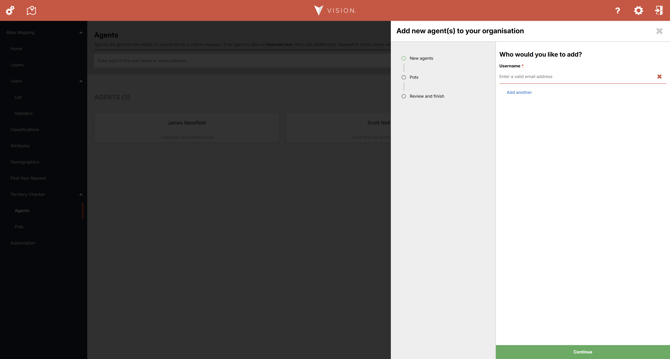
Here you add the agents email address and select which Pot(s) they can submit territory checks to.
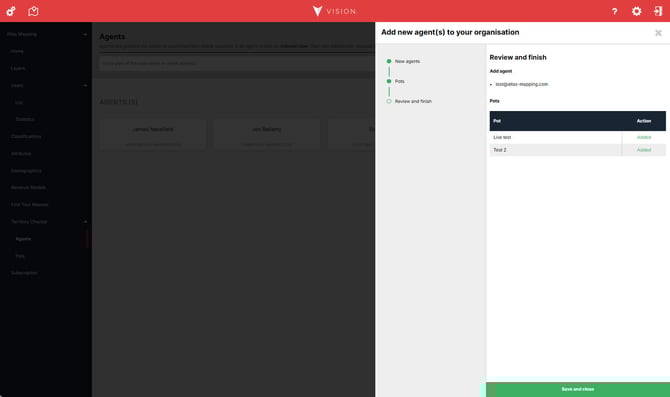
Once your Pot(s) are chosen, check the Review and finish page, and select Save and close.